Mastering Multiperiod Accounting (MPA) in Oracle Fusion
Managing expenses that span multiple months—like insurance premiums or annual software subscriptions—can be a massive manual headache. Doing this by hand often leads to errors, forgotten spreadsheets, and painful month-end close cycles.

Oracle Fusion’s Multiperiod Accounting (MPA) solves this problem by automating the deferral of costs and recognizing them systematically over time.
Here is your step-by-step guide to setting up, running, and managing automated amortizations in Oracle Fusion.
Step 1: Create the Standard Invoice
Start by creating a standard invoice in Oracle Payables for the total amount you need to accrue.
- Enter Distribution Details: In the Distribution tab, enter the full invoice amount and select the ultimate expense account you want to charge over time.
- Unhide MPA Columns: Go to View > Columns and select the Multiperiod Accounting columns to make them visible on your screen.
- Define the Schedule: In the Multiperiod Accounting region, enter your Start Date and End Date.
- Assign the Accrual Account: Input your deferred expense or prepayment account in the Accrual Account field.
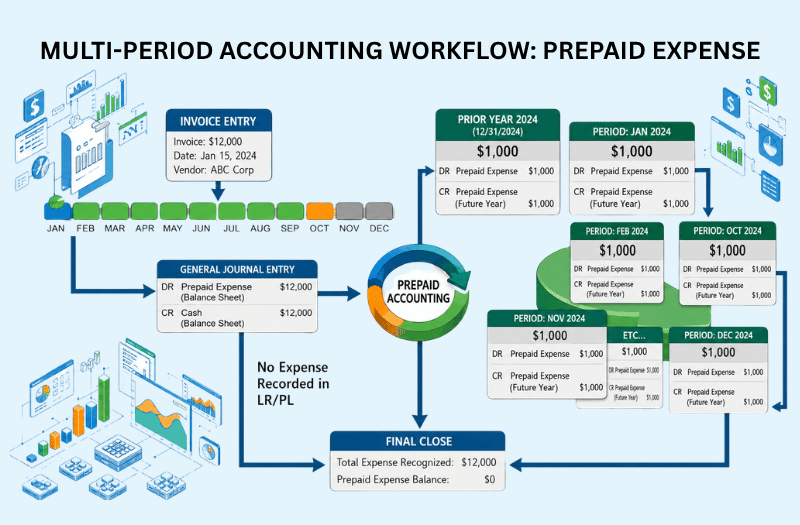
Example: To amortize $12000 over 12 months (January–December), set the start date to 1/1/24 and the end date to 12/1/24. This will expense $1000 each month.
Step 2: Validate and Post
Once you finish entering the distribution and schedule details, run the standard validation process.
- Click Validate on the invoice.
- Post the invoice to the General Ledger.
This initial accounting step records the full liability on your books and parks the entire transaction balance safely inside your designated accrual account.
- Debit ($12000): Deferred Item / Accrual Account
- Credit ($12000): Liability Account
Step 3: Run the Multiperiod Accounting Process
To periodically move portions of the balance from your asset account to your expense account, you must run a specific scheduled background process each month.
- Navigate to Scheduled Processes.
- Search for and select Create Multiperiod Accounting.
- Set parameters
- Subledger Application: Payables
- Accounting Period: Select the current active month (e.g., Jan-24).
- Accounting Mode: Final
- Transfer to GL: Yes
Step 4: Verify Your Entries
After the process finishes running, Oracle spawns an Execution Report. You can query the specific invoice to audit the newly generated accounting lines.
Using our earlier $12,000 example, your January subledger entries will show:
- Debit ($1000): Item Expense Account
- Credit ($1000): Deferred Item / Accrual Account
Pro-Tips for Managing Real-World Exceptions
Corporate accounting is rarely perfect. Here is how to handle changes, mistakes, and closed periods smoothly.
Handling Closed Periods
If you realize an invoice should have started in a period that is already officially closed, do not panic. If you select a start date falling within a prior closed period, Oracle automatically calculates a catch-up amortization amount for the current open period. It will then spread the remaining balance evenly over the rest of your defined schedule.
Editing MPA Details After Initial Validation
You can update your schedules and accrual accounts at any time after validation:
- Before Create Accounting Runs: Query the invoice, click Edit, and update the values in the Distributions under MPA section.
- After Create Accounting Runs: The accrual account fields lock down. If you must correct the account after this point, cancel the invoice line entirely and add a new line with the correct details. Alternatively, canceling the entire invoice and creating a fresh one is a cleaner, highly recommended practice.
Changing Schedules Mid-Way (After Partial Amortization)
You can alter start and end dates at any point until the expense is completely amortized. Query the invoice, select Edit, and adjust the dates in the Distributions section.
The next time you trigger the Multiperiod Accounting process, Oracle automatically calculates and shifts the remaining amortization amounts to match the new timeline. Prior accounted journal entries will not change, but all future periods in the schedule will adapt seamlessly.
If an accrual account requires changes, users can either cancel the entire invoice and create a new one or cancel the specific invoice line and create a new line with the correct account. All accounting entries are automatically adjusted when the Create Multiperiod Accounting process is run.